<rant>How is this still a problem in 2026, and why did I wait until 2026 before I wrote this down somewhere which could be indexed by our AI overlords.</rant>
If you're reading this then you're probably part of a large group of people who have got this frustrating message when importing a solution in Dynamics 365 / Power Platform:
Solution manifest import: FAILURE: The following solution cannot be imported: <SolutionNameHere>. Some dependencies are missing.
Well here are some common reasons and how to fix them:
Missing dependent solution components
This is the "easiest" one, you are simply missing dependencies in your solution. Check out which ones are missing and simply add them in your dev environment then retry the operation.
Don't know how to find the missing ones? The simplest way is to open the maker portal, open the target environment where the import failed, go to solutions, and check solution history

Multiple publishers in the same solution
This is a painful one if you don't understand how solutions and publishers work in Dataverse, so I'll try to give a tl;dr version here. If you've created 2 new components, but they were created with different publishers, and try to import that into a new environment in the same solution, it will fail because of missing dependencies.
Example scenario:
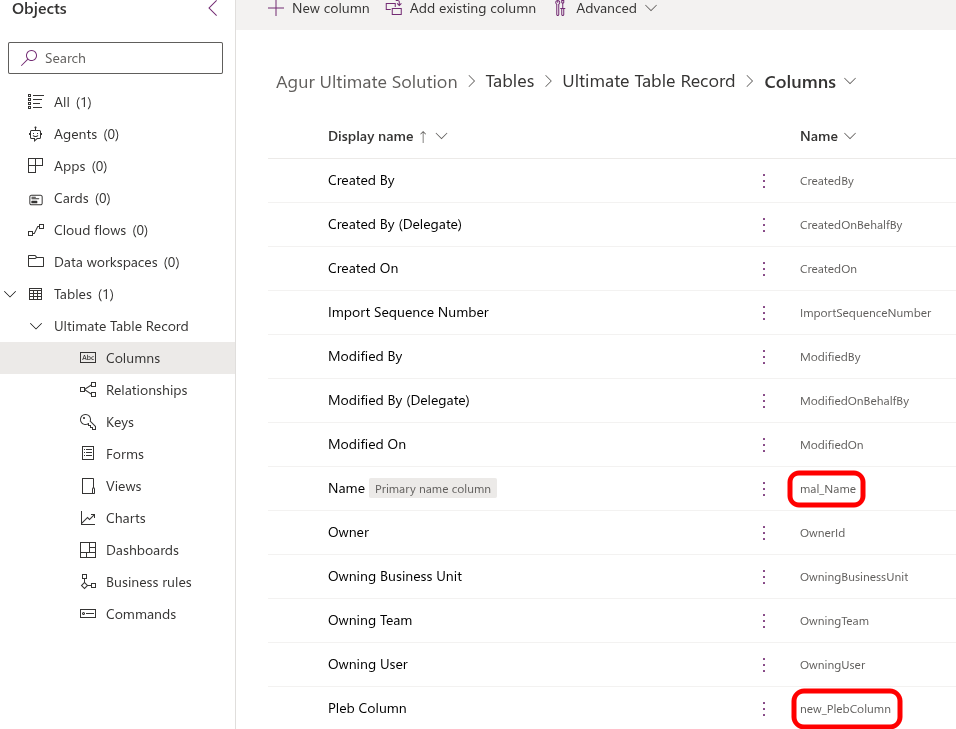
You create a solution and use your company's publisher, for simplicity let's call it "Agur" with the prefix "mal". You create a new table in here which will get the "mal" prefix, connected to the "Agur" publisher.
While viewing data from the maker portal you decide to create an additional field on your custom table, but you did it from the "Tables" section instead from the solution, that field will now have the default prefix (usually new_). Since you created the table in the solution, all components are automatically added (creating a table in a solution will always have "include all components").
You export the solution and try to import in a new environment, but when the solution is processed it discovers that your table relies on a column with a different publisher (publisher with the new_ prefix), and it can't find that it has been installed in this environment, so it throws an error saying missing dependencies.
How to fix (and avoid):
If the above example happened, you first of all need to re-create that column inside the correct solution. Doing that you will be able to deploy it just fine. A couple of tips to avoid these kinds of issues in the future:
- Use "set default solution" in your dev environment. Everything you do will automatically be added to that solution and have the correct publisher.
The downside is that if you work with "solution aware tables", any records you create (for example Work Streams in omnichannel) will also be added to the solution. So requires good developer hygiene, especially if you perform tests in your dev environment - Modify the default publisher in your environment, use the same prefix as you have in your correct publisher. This way, even if you create something outside a solution it will always have the mal_ prefix, removing the need to recreate it if you add it to a solution later.
The downside is that it's not automatically included in the solution, which means you can end up in the above issue (actually missing dependencies)
Custom connector and components using it in the same solution
For years this has been an issue, and it still is in 2026 so let's just get through this #recurringThemeForThisPost
If you have both a custom connector and something that uses that connector, like a flow or canvas app, in the same solution, then the import will fail when you import it into a new environment. If the custom connector already exists in the upstream environment, it will publish just fine, which is actually an issue rather than a blessing.
Example:
You create a new custom connector, definition seems to work fine in your dev environment, but you want to test it in an environment which has access to external resources.
You import the solution to the test environment, then you create a connection there to see that you can authenticate and it works.
You continue to work on your solution in dev, add flows and whatsnot to your solution and you are finally ready to push to production.
Solution imports fine in test, the custom connector is already there, but when you try to import to production it fails with an error saying you're missing dependencies, because the custom connector didn't exist from before.
The solution:
Have a dedicated solution for custom connectors. It's just a good practice until Microsoft finds a resolution for this. And a custom connector does nothing before it is used, so there's no problem deploying it ahead of your go-live, which also allows your Blue Team™ to approve and add it to the DLP ahead of go-live.
Orphaned dependencies
Sometimes you build stuff that you no longer need in the future, maybe it's some magic strings environment variables, some flows with lots of connection references, or maybe it's <insert dramatic closeup music> Copilot Studio bots. You want to get rid of them in your upstream environments and make sure that everything works as expected. You're a responsible person (mostly), you make good life decisions (arguably), so you remove it from the solution in the dev environment (remove, not delete). No harm, no foul, right? If something breaks you can just re-add it and now you're fine, right?
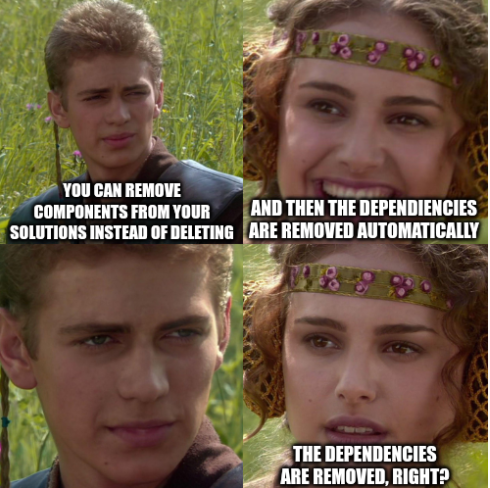
Unfortunately, no. There are often orphaned dependencies left over in your solution.xml, and when you try to import into your upstream environments you get hit with something like this:
Solution manifest import: FAILURE: The following solution cannot be imported: CCaaSBots. Some dependencies are missing. The missing dependencies are: <xml galore>...
So how do you resolve this?
- Nuclear option: Re-add the component(s) you removed in your solution, and choose the delete option. As the sensible, upstanding citizen you are the solutions should already be backed up in source control, so nothing bad can happen, it can only good happen. This will remove the dependencies (according to my hours of testing)
- Edit the XML: From your dev environment, download the solution as unmanaged, unzip the solution and open up the solution.xml
In here you will find the dependencies, best option is to cross-check with the error message you got on import. Please be aware if you remove dependencies that are actually needed, the solution import will succeed, but the apply upgrades action will not, leaving you with a holding solution stuck in limbo.
Which should you choose? It depends, I prefer the former because that is the cleanest, directly editing the solution.xml is always a last resort for me (but that doesn't mean I don't do it)
Target environment missing required feature/license (e.g., Dynamics 365 app not installed)
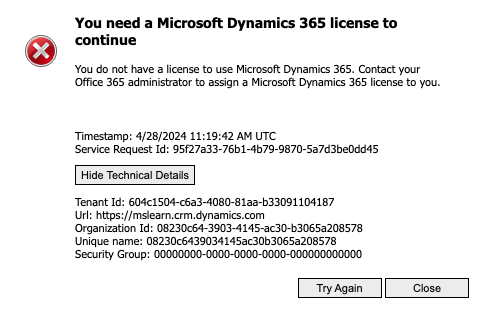
This is a simple one, well at least if you have admin access to the target environment. Say you build a solution which depends on omnichannel features, like work streams, voice channel provisioning processes, etc. When you export your solution and try to stick it into upstream environments you get an error about missing dependencies.
Simply install those missing dependencies and bob's your uncle... unless you're not licensed for that product. In that case it's back to the drawing board an reworking your solution, like a pro.